
Redundant Channels
Enabling Redundant Channels
While creating a new channel, enable the Enable In-Region Redundancy toggle in the channel creation wizard.
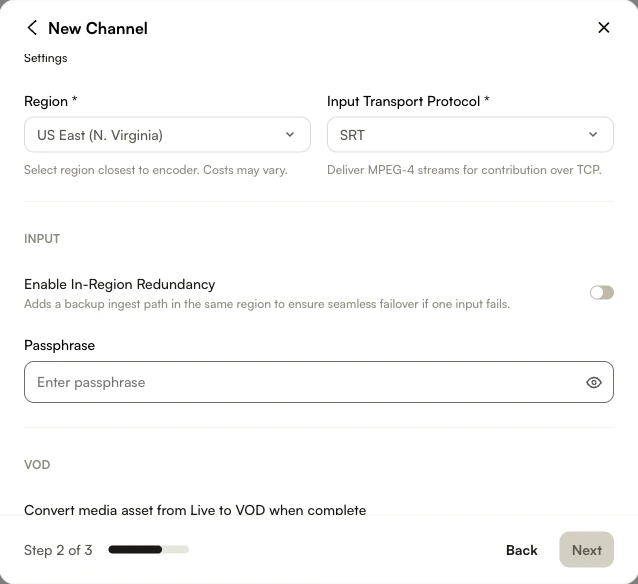
After creating the channel, open the Control Room to see your Input URLs.
You can stream to both endpoints to create live-stream redundancy and ensure uninterrupted playback.
Manual Failover
You can manually switch between redundant inputs in a Live 2.0 job using the Force Failover API:
PUT
/v2/accounts/{account_id}/jobs/{job_id}/failover
Reference page: Force Failover API Documentation
The required pipeline_name parameter corresponds to the ingest pipeline names listed in the job's ingest_states object. You can retrieve these values by requesting the job details via the Live 2.0 API.
Example job response:
"ingest_states": {
  "ingest-1": "connected",
  "ingest-2": "connected"
}
In this case, the valid pipeline_name values are:
ingest-1ingest-2
Example request body:
{
  "pipeline_name": "ingest-2"
}
This request forces ingest-2 to fail, triggering a switch to the other available ingest pipeline.
Monitoring
Click Health Monitoring in the side navigation to view monitoring information for both streams simultaneously.
Monitoring information is available while a channel is in progress and for up to 1 hour after the channel ends.
Enable Low-Latency Redundant Streaming
This topic shows how to create a low-latency event with in-region redundancy in Live.
Creating an Event Channel
- In Studio, open the Live module.
- While creating a new channel, select Enable In-Region Redundancy under the Redundancy section.
- In Channel Settings > Advanced Settings > Stream Controls, enable Low Latency (LL-HLS).
- Click Save.
- After the event is created, note the SRT/RTMP Ingest URLs for both primary and backup feeds.
Configure ffmpeg for low latency
-
In the terminal, enter the following command (replace
input.mp4with your source):ffmpeg -re -i input.mp4 -c:v libx264 -profile:v baseline -level 3.0 -preset ultrafast -g 30 -keyint_min 30 -sc_threshold 0 -r 30 -x264opts "no-scenecut" -c:a aac -b:a 128k -f mpegts "srt://0123456789-1.ingest.live.brightcove.com:5000?pkt_size=1316&latency=200"
Best practices for redundant contribution paths
When using redundant channels, Brightcove recommends configuring both contribution paths to be as equivalent as possible. This applies to encoder output settings (bitrate, resolution, framerate, and codec profile), GOP and keyframe intervals, captions and subtitle delivery, and overall timing behavior.
Equivalent contribution paths help ensure that transitions between inputs are transparent to viewers. For additional guidance, see Brightcove NextGen Live: Best Practices.