
Host a Cisco Webex Conference to Brightcove Live
Introduction
Cisco Webex is a video conferencing application that allows you to meet with other people online. To reach a larger audience, you can leverage Brightcove Live to stream your meeting for others to see.
Steps
Follow these steps to host a meeting to Brightcove Live:
- Log into your Cisco Webex platform as site admin.
- Using either the Site Administration or Control Hub, enable live stream access to Other streaming services.
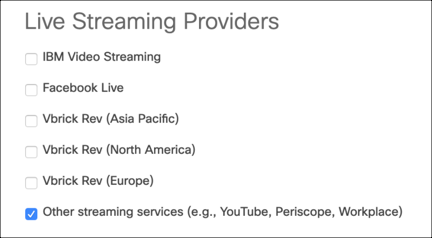
Live streaming providers - Using either the Site Administration or Control Hub, enable live streaming for individual users.
Navigate to Users and select a user account to update. Click Advanced User Settings and Tracking Codes section for the user, and check the Enable Live Streaming box.
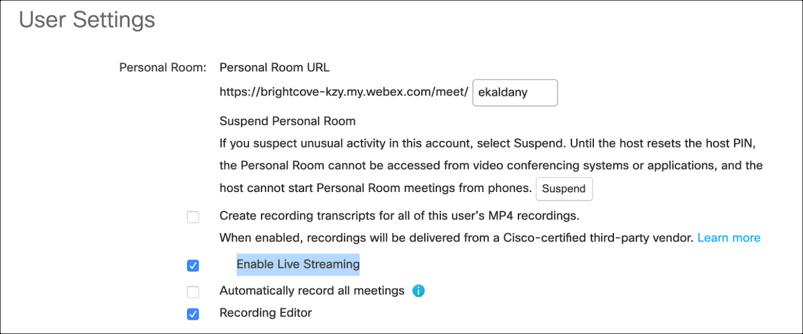
User settings - Login to Studio.
- Open the Live module and create a live event.
- When you create this channel, you will be provided the following information in the Control Room Input Source panel:
- Input URL - Streaming URL (maps to Webex Endpoint (RTMP URL))
- Input Stream Name - Streaming key (maps to Webex Stream Name; default is blive in NextGen Live)
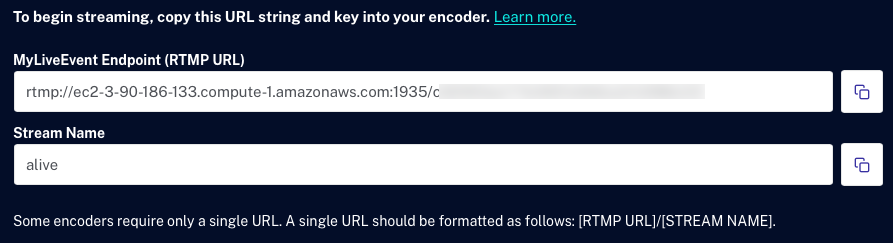
Stream URL and name - Click Embed on Web to embed the player for this live event into your website or intranet page. Copy the page URL to your clipboard.
- Return to the Cisco Webex application. Start or schedule your Webex meeting. To do this, select the vertical 3-dot icon and select Start Live Streaming.
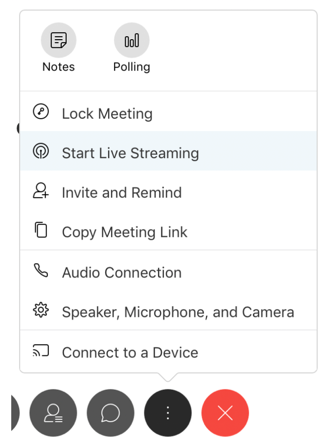
Start Webex meeting - In the Other streaming service information dialog, enter the following:
- Streaming service: Use
Brightcove - Target stream link: Use the Endpoint (RTMP URL) value from Brightcove Live.
- Target stream key: Use
blive(It is always this value)
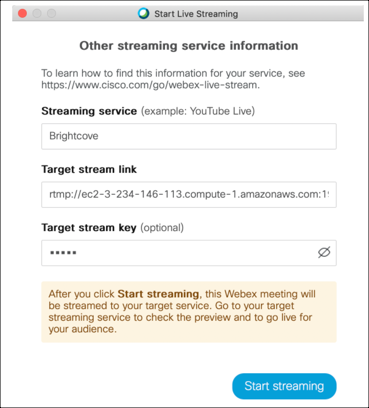
Streaming information - Streaming service: Use
- That's it. You're live!
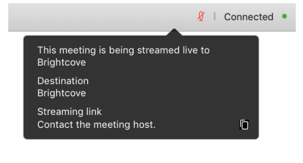
Stream live to Brightcove