
Scheduling NextGen Live Events
Introduction
The NextGen Live Task Scheduler allows you to schedule automated start and stop times for live channels. The scheduler makes calls to the Live API on your behalf at specified times, automatically activating and deactivating live streams according to your schedule.
The scheduler supports the following workflow types:
- Job Start/Stop Scheduling - Schedule when a live channel should start and stop streaming
Adding a Schedule to a Channel
You can add schedules to NextGen Live channels using the Control Room interface or the API. When you create a schedule, the system creates a workflow with tasks that execute in sequence.
Using the Control Room
To add a schedule using the Live module:
- Open the Live module and navigate to NextGen Live.
- Click on an existing channel to open the Control Room.
- Locate the Scheduling section in the Control Room.
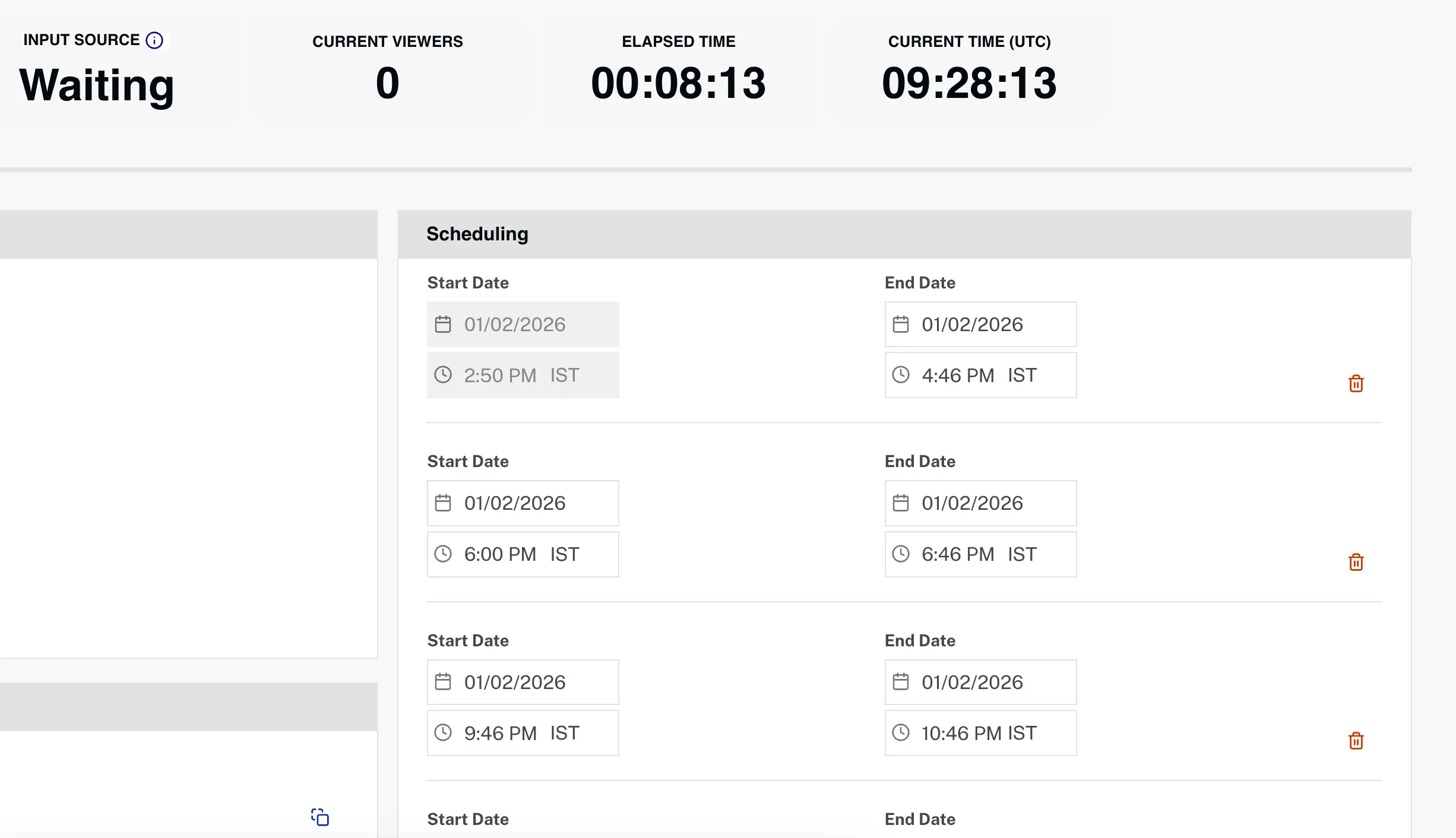
- Click Add Schedule.
- Enter the schedule details:
- Start Date/Time - When the channel should start streaming
- End Date/Time - When the channel should stop streaming
Using the API
To create a schedule programmatically, use the Job Start/Stop Schedule API endpoint:
Request
POST /v2/accounts/{account_id}/jobs/{job_id}/scheduler/jobstartstopRequest Body
{
    "job_id": "6386637563112",
    "notification_url": "https://your-notification-endpoint.com/webhook",
    "description": "My scheduled live event",
    "metadata_passthrough": {
        "custom_field": "custom_value"
    },
    "start_action": {
        "time_utc": 1742230896,
        "notification": 300
    },
    "stop_action": {
        "time_utc": 1742234496,
        "notification": 300
    }
}
Request Fields
| Field | Type | Required | Description |
|---|---|---|---|
job_id |
string | Yes | The ID of the live channel to schedule |
notification_url |
string | Conditional | Webhook URL to receive notifications. Required if notification values are set in actions |
description |
string | No | Optional description for the schedule |
metadata_passthrough |
object | No | Custom metadata to pass through with notifications |
start_action.time_utc |
integer | Yes | Unix timestamp (seconds since epoch) when the channel should start |
start_action.notification |
integer | No | Seconds before start time to send a pre-start notification |
stop_action.time_utc |
integer | Yes | Unix timestamp (seconds since epoch) when the channel should stop |
stop_action.notification |
integer | No | Seconds before stop time to send a pre-stop notification |
Response
{
    "workflow_id": "28ac2d2163d34b93860b6b5062df97e7",
    "account_id": "6415518627001",
    "type": "jobstartstop",
    "workflow_start_time_utc": 1742230896,
    "job_id": "6386637563112",
    "notification_url": "https://your-notification-endpoint.com/webhook",
    "start_action": {
        "time_utc": 1742230896,
        "notification": 300,
        "state": "pending"
    },
    "stop_action": {
        "time_utc": 1742234496,
        "notification": 300,
        "state": "pending"
    }
}
Viewing Scheduled Events
You can view all scheduled events for a channel using the Control Room or the API.
Using the Control Room
In the Control Room, the Scheduling section displays all scheduled events for the channel:
- Upcoming schedules - Shows pending start and stop times
- Schedule status - Indicates the current state of each schedule
- Actions - Edit or delete scheduled events
Using the API
To list all schedules for a channel:
GET /v2/accounts/{account_id}/jobs/{job_id}/schedulerQuery Parameters
| Parameter | Type | Description |
|---|---|---|
state |
string | Filter by state(s), comma-separated (e.g., pending,cancelled) |
start |
integer | Filter workflows with start time >= this Unix timestamp |
end |
integer | Filter workflows with start time < this Unix timestamp |
page_size |
integer | Number of results per page (max: 100) |
start_token |
string | Pagination token for fetching next page |
Example: List pending schedules
GET /v2/accounts/123/jobs/abc123/scheduler?state=pendingResponse
{
    "workflows": [
        {
            "workflow_id": "10ac2d2163d34b93860b6b5062df97e7",
            "account_id": "6415518627001",
            "type": "jobstartstop",
            "workflow_start_time_utc": 1742220896,
            "job_id": "6386637563112",
            "start_action": {
                "time_utc": 1742220896,
                "state": "pending"
            },
            "stop_action": {
                "time_utc": 1742224496,
                "state": "pending"
            }
        }
    ],
    "next_token": "optional_pagination_token"
}
Updating a Schedule
You can update scheduled events that are still in the pending state.
Using the Control Room
- In the Control Room, locate the schedule you want to update in the Scheduling section.
- Modify the schedule details as needed.
Using the API
To update a schedule programmatically:
PATCH /v2/accounts/{account_id}/jobs/{job_id}/scheduler/jobstartstop/{workflow_id}Request Body
{
    "start_action": {
        "time_utc": 1742231000,
        "notification": 600
    },
    "stop_action": {
        "time_utc": 1742235000
    }
}Deleting a Schedule
Deleting a schedule cancels all pending tasks in the workflow.
Using the Control Room
- In the Control Room, locate the schedule you want to delete in the Scheduling section.
- Click the three-dot menu (⋮) next to the schedule and select Delete.
- Confirm the deletion when prompted.
Using the API
To delete a schedule programmatically:
DELETE /v2/accounts/{account_id}/jobs/{job_id}/scheduler/jobstartstop/{workflow_id}API Reference
The following API endpoints are available for NextGen Live scheduling:
Job Start/Stop Scheduling
| Method | Endpoint | Description |
|---|---|---|
GET |
/v2/accounts/{account_id}/jobs/{job_id}/scheduler |
List all scheduled workflows for a channel |
POST |
/v2/accounts/{account_id}/jobs/{job_id}/scheduler/jobstartstop |
Create a new scheduled start/stop workflow |
GET |
/v2/accounts/{account_id}/jobs/{job_id}/scheduler/jobstartstop/{workflow_id} |
Get details of a specific scheduled workflow |
PATCH |
/v2/accounts/{account_id}/jobs/{job_id}/scheduler/jobstartstop/{workflow_id} |
Update an existing scheduled workflow |
DELETE |
/v2/accounts/{account_id}/jobs/{job_id}/scheduler/jobstartstop/{workflow_id} |
Delete/cancel a scheduled workflow |
AutoStop Scheduling
| Method | Endpoint | Description |
|---|---|---|
GET |
/v2/accounts/{account_id}/jobs/{job_id}/scheduler/autostop |
Get autostop schedule for a channel |
For complete API documentation, see the NextGen Live API Reference.