
Overview
NextGen Live is a new live-streaming solution that is reliable, consistent, and scalable.
The objectives for NextGen Live are:
- Improved System Reliability
- Deliver key features that are required
- Live streaming foundation that is extensible for the future
Navigating to NextGen Live
- Log in to Video Cloud Studio.
- Click Live in the left navigation. The Channels page will open.
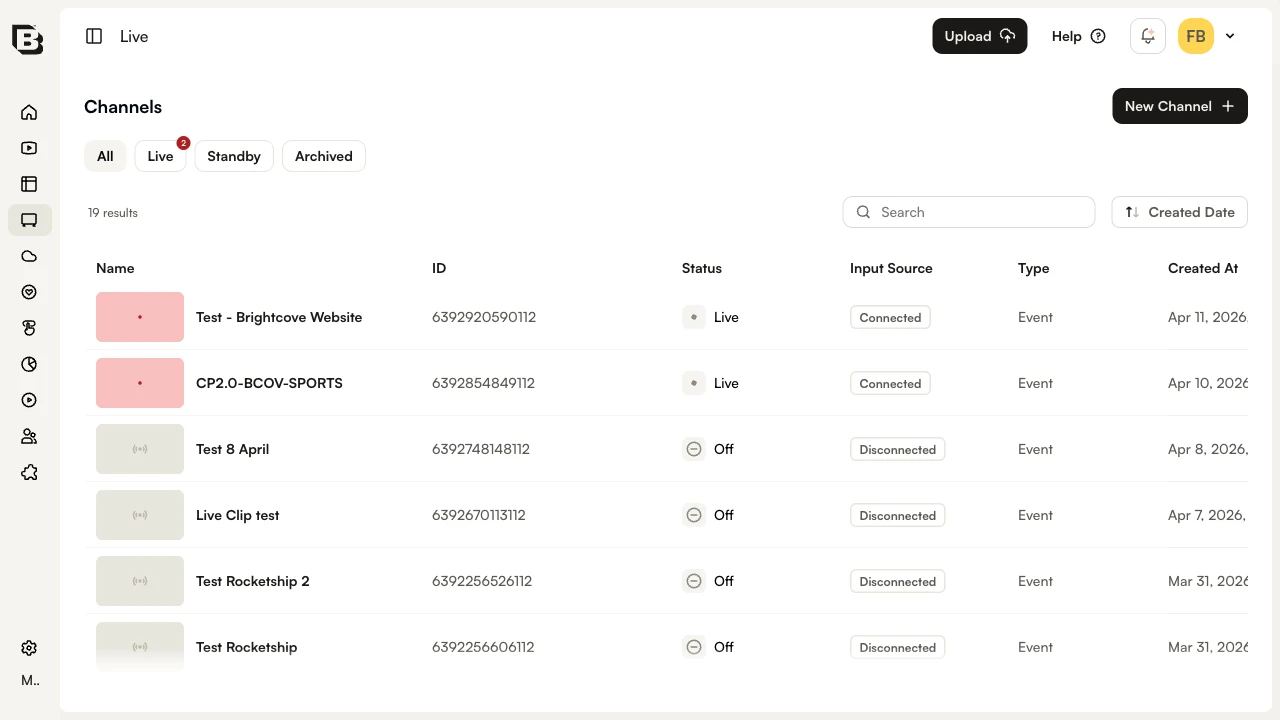
Creating a New Channel
- Navigate to the Live Module.
- Click New Channel. A 3-step wizard will open.
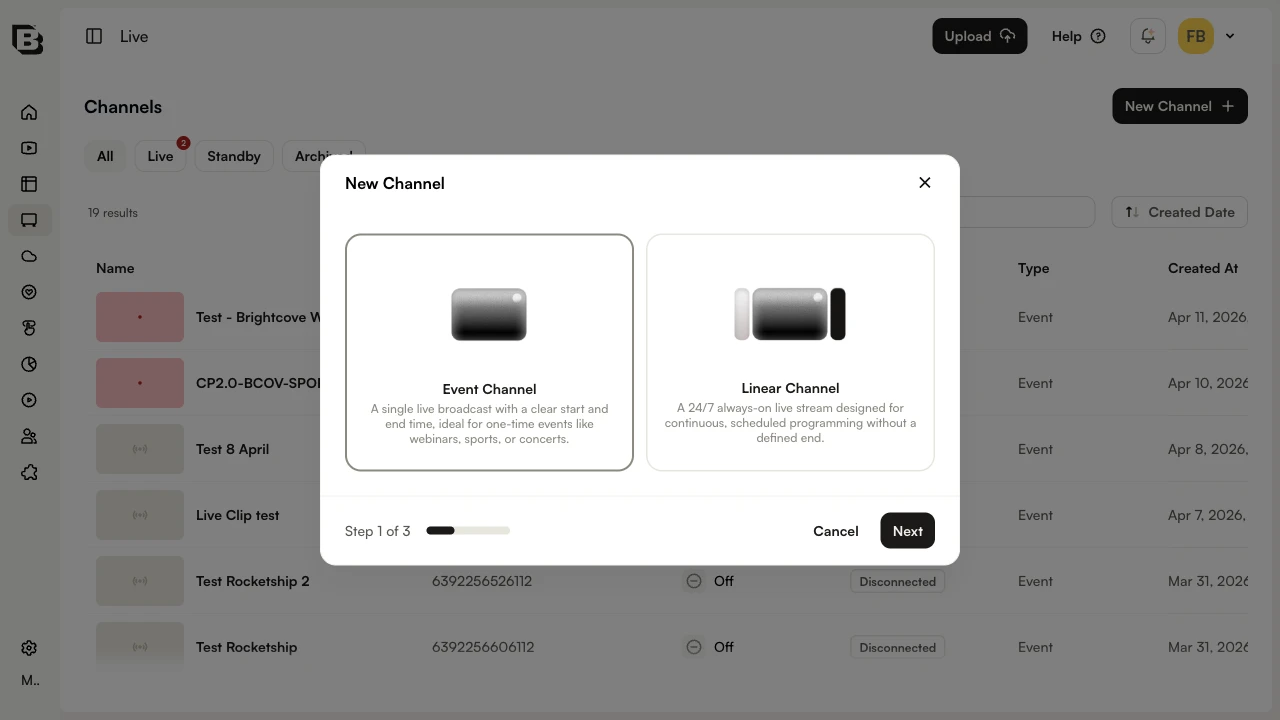
Typically, event channels are created to stream shorter-length, one-time, or recurring events. Linear channels are typically used when delivering 24/7 live channels. Linear channels and events channels are billed differently - check with your Customer Success manager for details.
- Fill your Live Channel information.
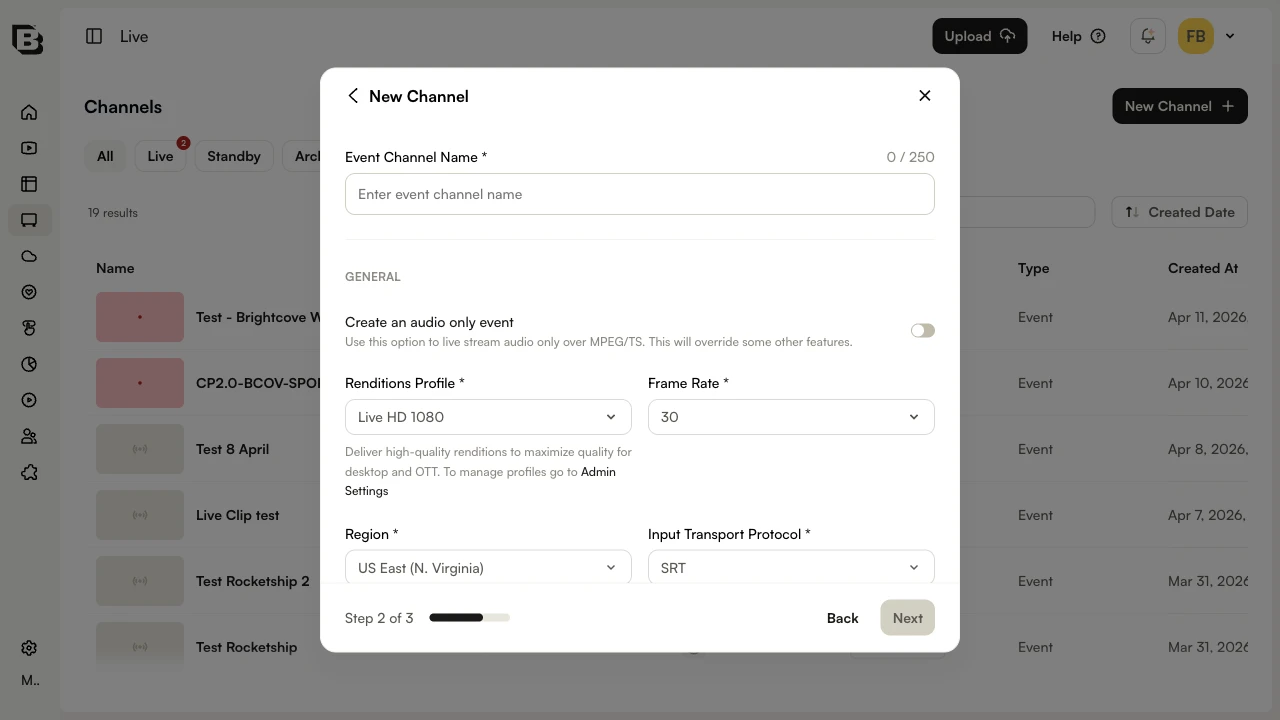
- Click Create to finish the wizard.
- Click Start in the Control Room header. The channel will start, and the URL will be generated. This may take more than a minute.
- Find your Encoder source URL.
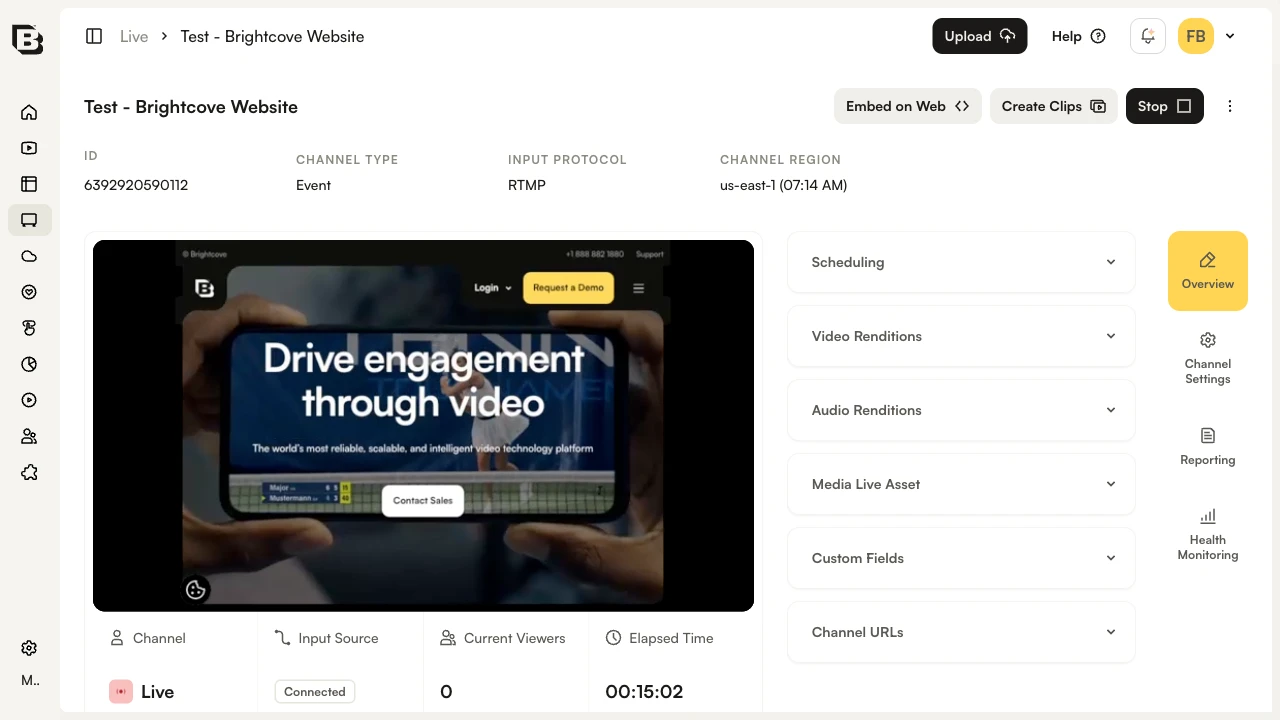
- Stop your Live Channel by clicking Stop (available from the three-dot menu or the Control Room header when streaming).

Editing a Channel
- Navigate to the Live Module.
- Click the three-dot menu (⋮) next to your live channel.
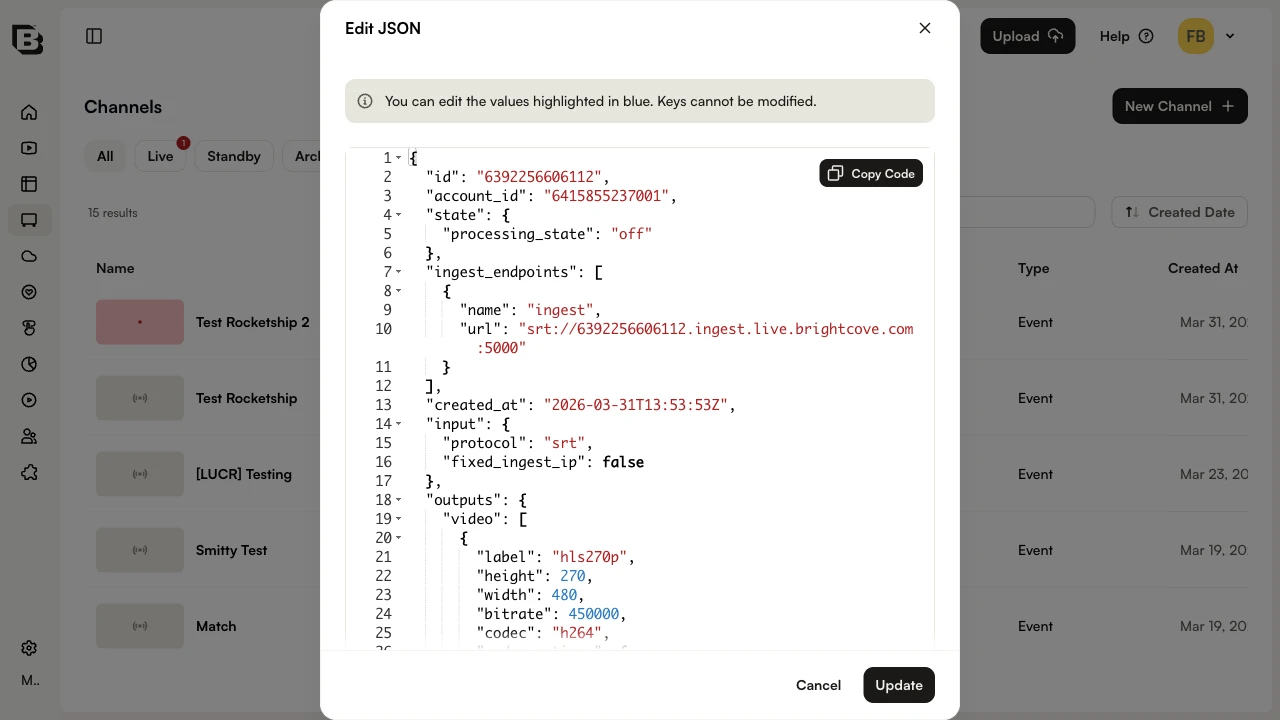
- Click Edit JSON.
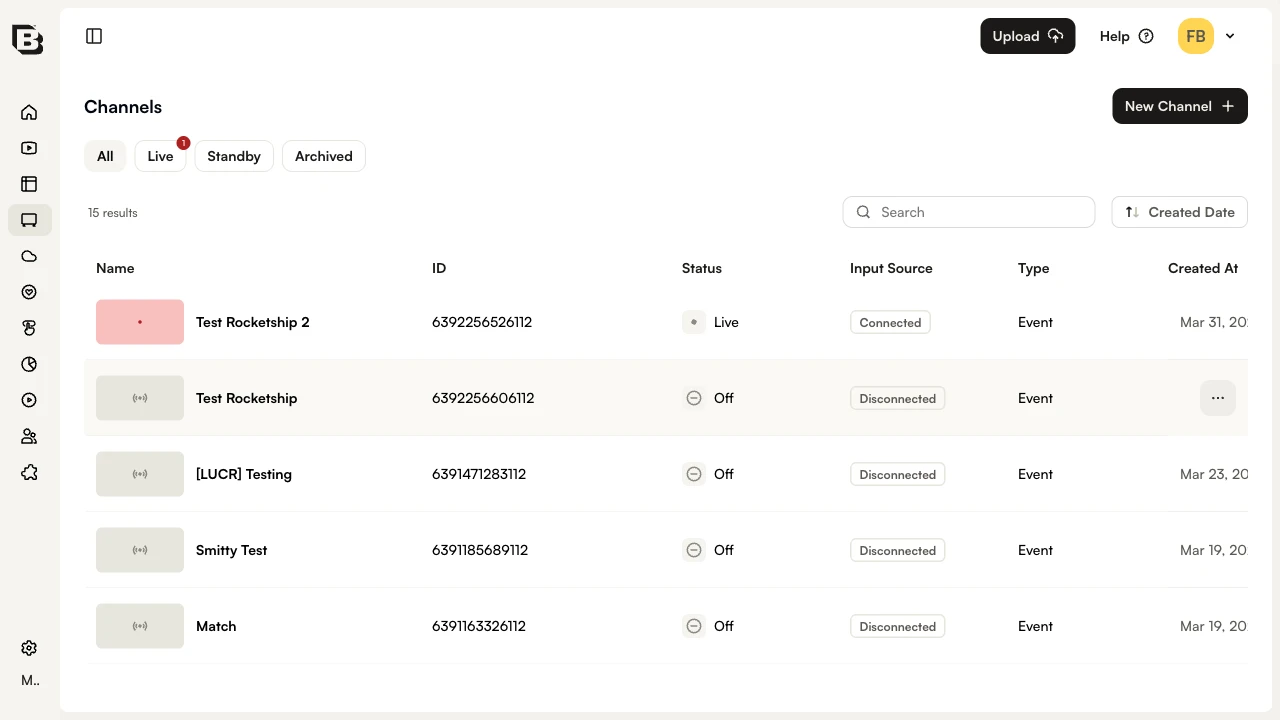
- Edit your JSON file and click Save
Archiving a Channel
- Navigate to the Live module.
- Click the three-dot menu (⋮) next to your live channel.
- Click Archive.
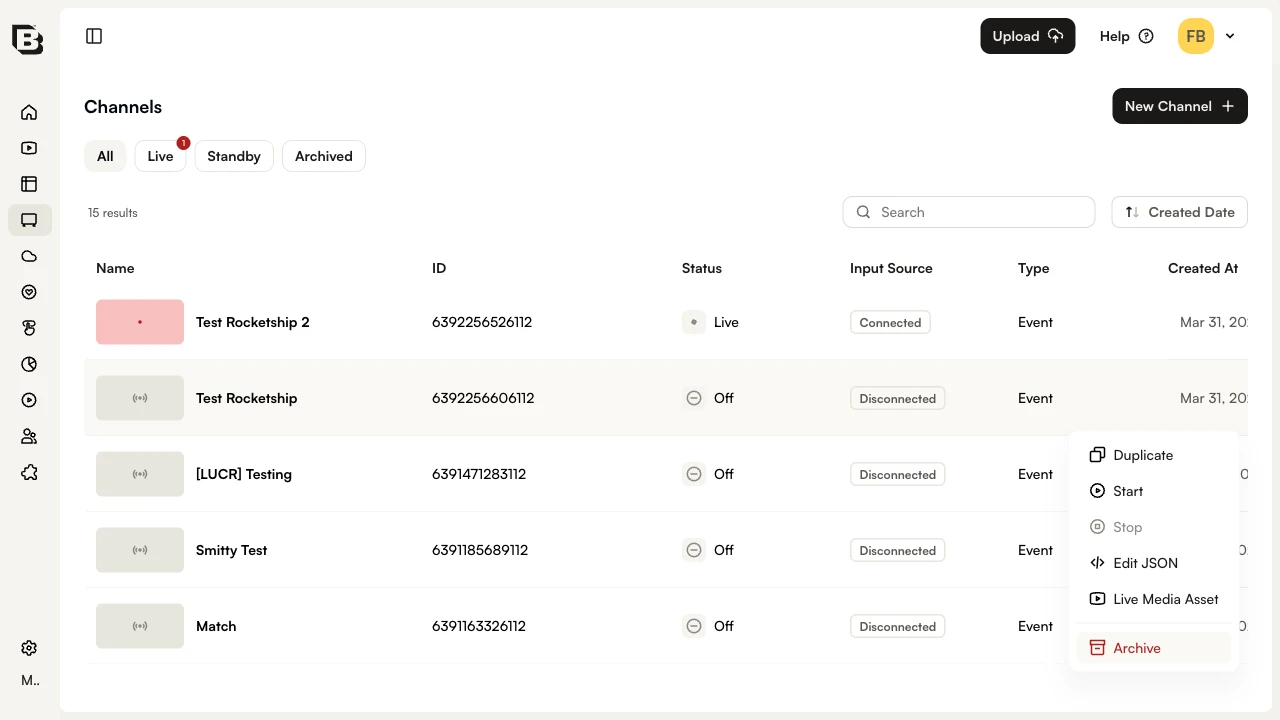
The three-dot menu (⋮) on each channel row provides the following actions:
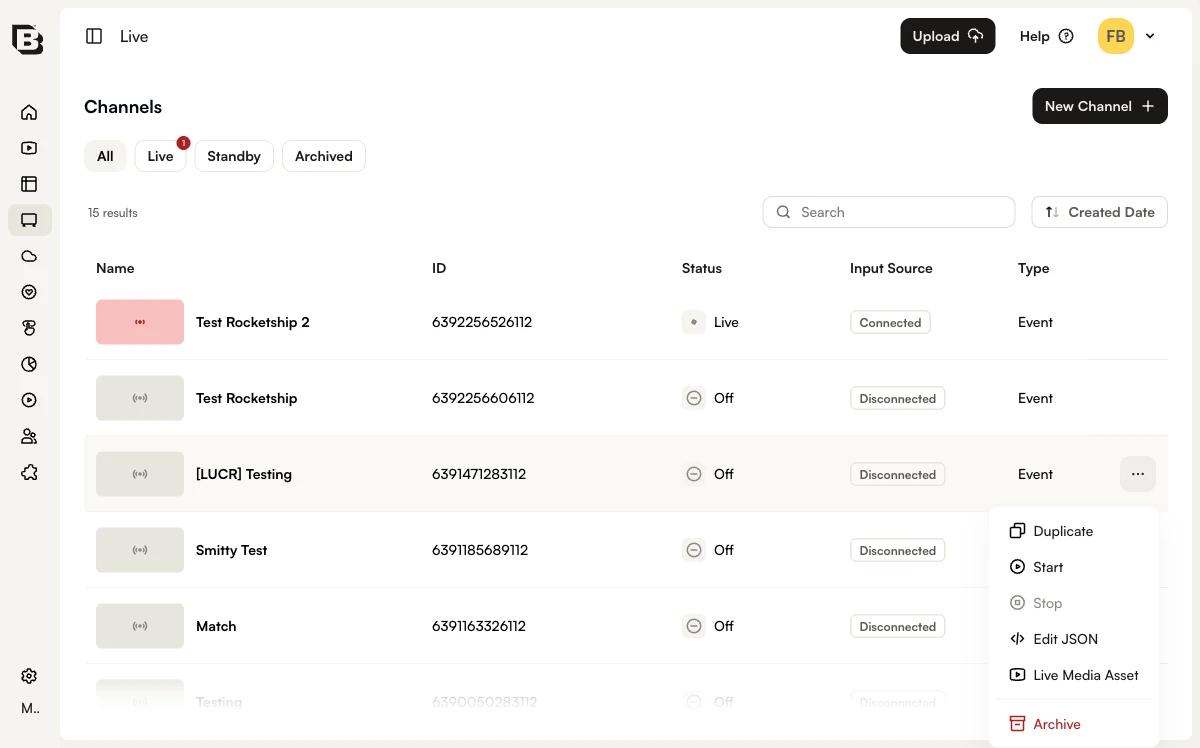
- Duplicate - Creates a new channel with the same settings as the selected channel.
- Start - Starts the channel and makes it available for streaming.
- Stop - Stops the channel (only available when the channel is actively streaming).
- Edit JSON - Opens a JSON editor to directly modify the channel configuration (only available when streaming is stopped).
- Live Media Asset - Opens the associated live media asset in the Media module.
- Archive - Permanently archives the channel.