Vertical Video
Overview
Vertical video uses a 9:16 aspect ratio, designed for portrait-mode viewing on mobile devices. NextGen Live supports vertical video for live events, making it well suited for social media, mobile-first broadcasts, and other portrait-oriented streaming scenarios.
Requirements
- A NextGen Live-enabled Brightcove account.
- An encoder capable of sending a 9:16 portrait-orientation video stream (for example, 1080x1920 at your target bitrate).
Regional Availability
Vertical Video Streaming is currently supported only in the following regions:
| Region | Region Code | Support |
|---|---|---|
| US East (N. Virginia) | us-east-1 | Supported |
| US West (Oregon) | us-west-2 | Supported |
| Asia Pacific (Mumbai) | ap-south-1 | Supported |
| Asia Pacific (Sydney) | ap-southeast-2 | Supported |
| Europe (Ireland) | eu-west-1 | Supported |
Channel Type Support
Vertical Video Streaming is currently supported only for Event Channels.
| Channel Type | Vertical Video Support |
|---|---|
| Event Channel | Supported |
| Linear Channel | Not supported |
Creating a Vertical Video Live Event
- In Studio, open the Live module.
- Click New Channel. Select Event Channel and click Next.
- Enter an Event Channel Name for your vertical video stream.
- Under Video Orientation, select Vertical (9:16).
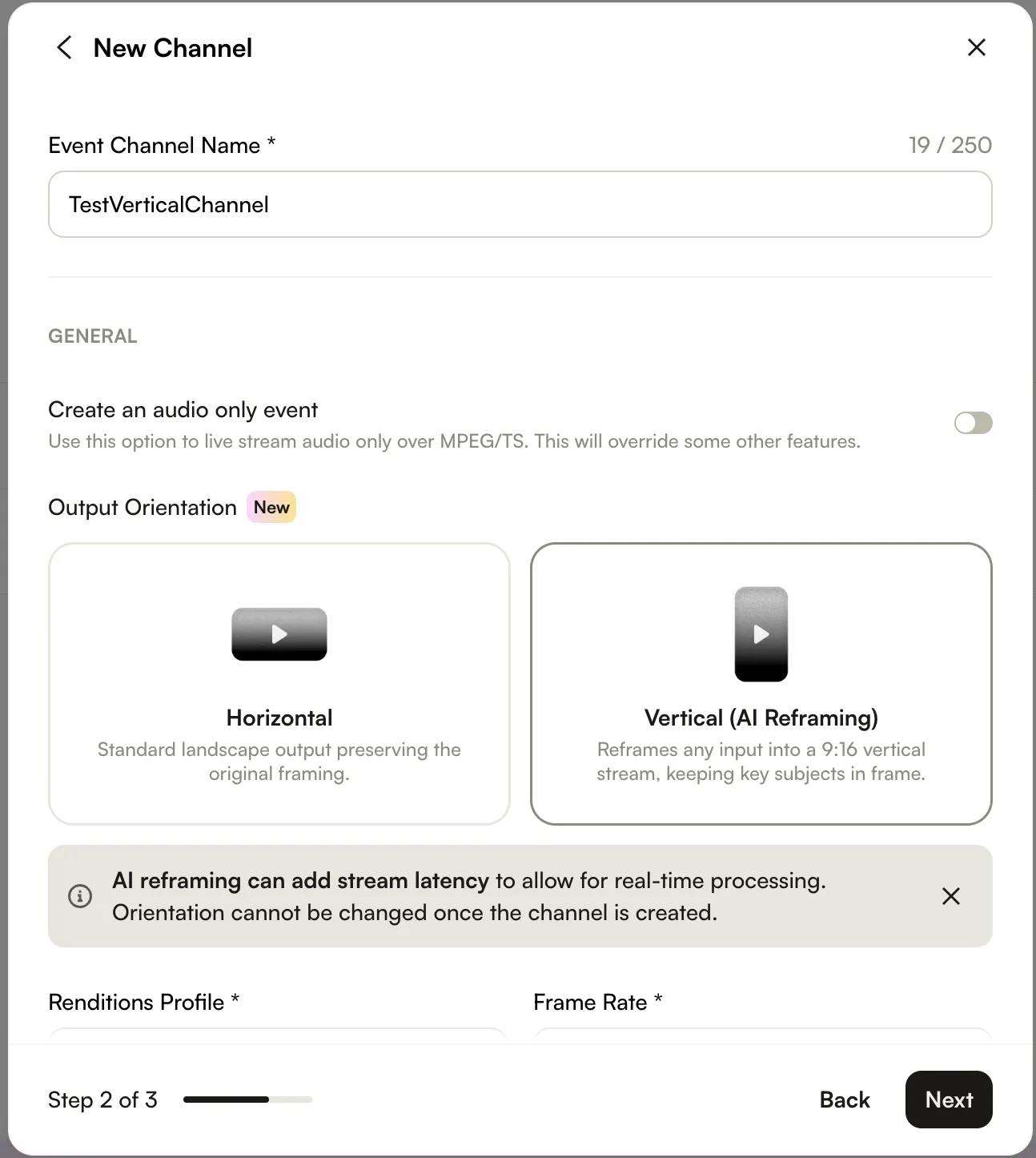
- Select your Region. To reduce latency, choose the region closest to your encoder.
- Choose your Input Transport Protocol: SRT or RTMP.
- (Optional) Enable Convert media asset from Live to VOD when complete to save the stream as an on-demand vertical video asset after the event ends.
- Click Next to complete the remaining configuration steps, then click Create.
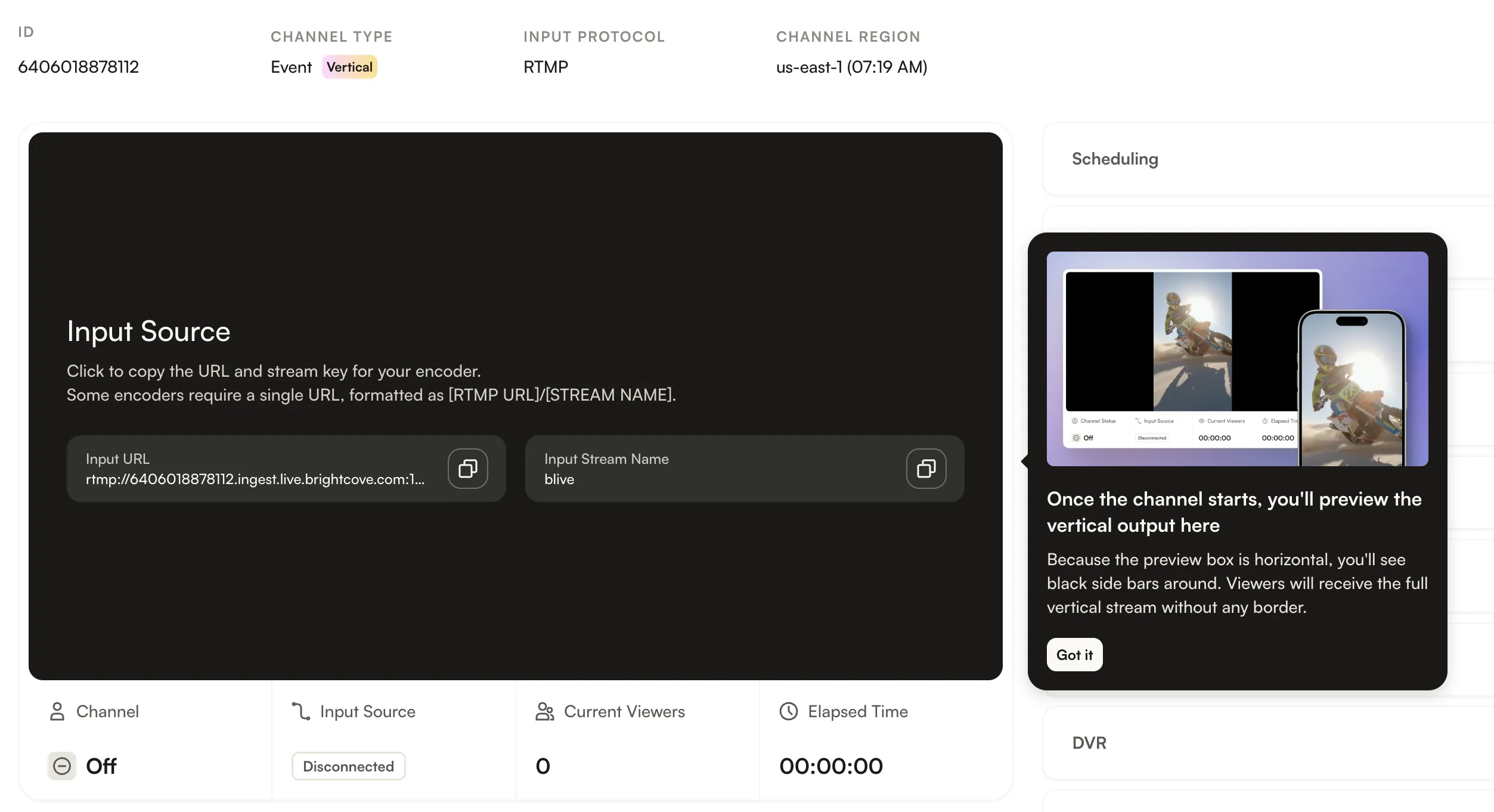
Once the channel is created, the Channel Type section on the Channel page displays Vertical, confirming that Vertical Video Streaming is enabled for the channel.