HLS Input Support
Overview
HLS Input allows you to use an HLS (HTTP Live Streaming) stream as the source input to a NextGen Live channel. This is useful when your encoder or upstream source produces HLS output rather than RTMP or SRT. NextGen Live ingests the HLS stream and transcodes it for delivery to viewers.
Requirements
- A NextGen Live-enabled Brightcove account with HLS Input enabled.
- An encoder or upstream source capable of producing a valid HLS stream (m3u8 playlist with TS segments).
- The HLS source URL must be publicly accessible or reachable by the NextGen Live ingest endpoints.
Supported Formats
The following HLS input formats are supported:
| Format | Support |
|---|---|
| HLS with MPEG-TS segments | Supported |
| HLS with fMP4 segments | Not supported |
Creating a Channel with HLS Input
- In Studio, open the Live module.
- Click New Channel. Select the channel type and click Next.
- Enter a Channel Name for the live channel.
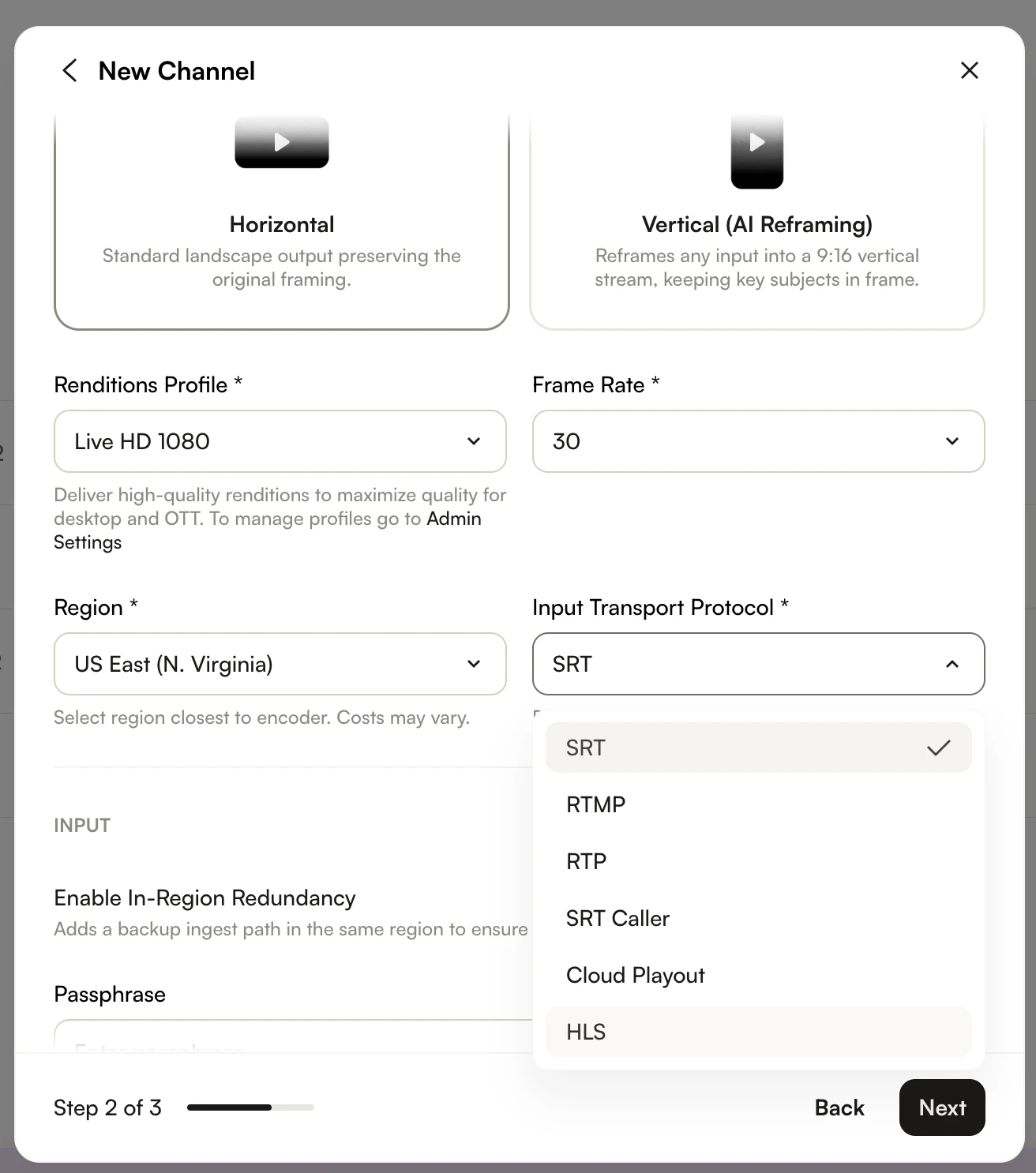
- Under Input Transport Protocol, select HLS.
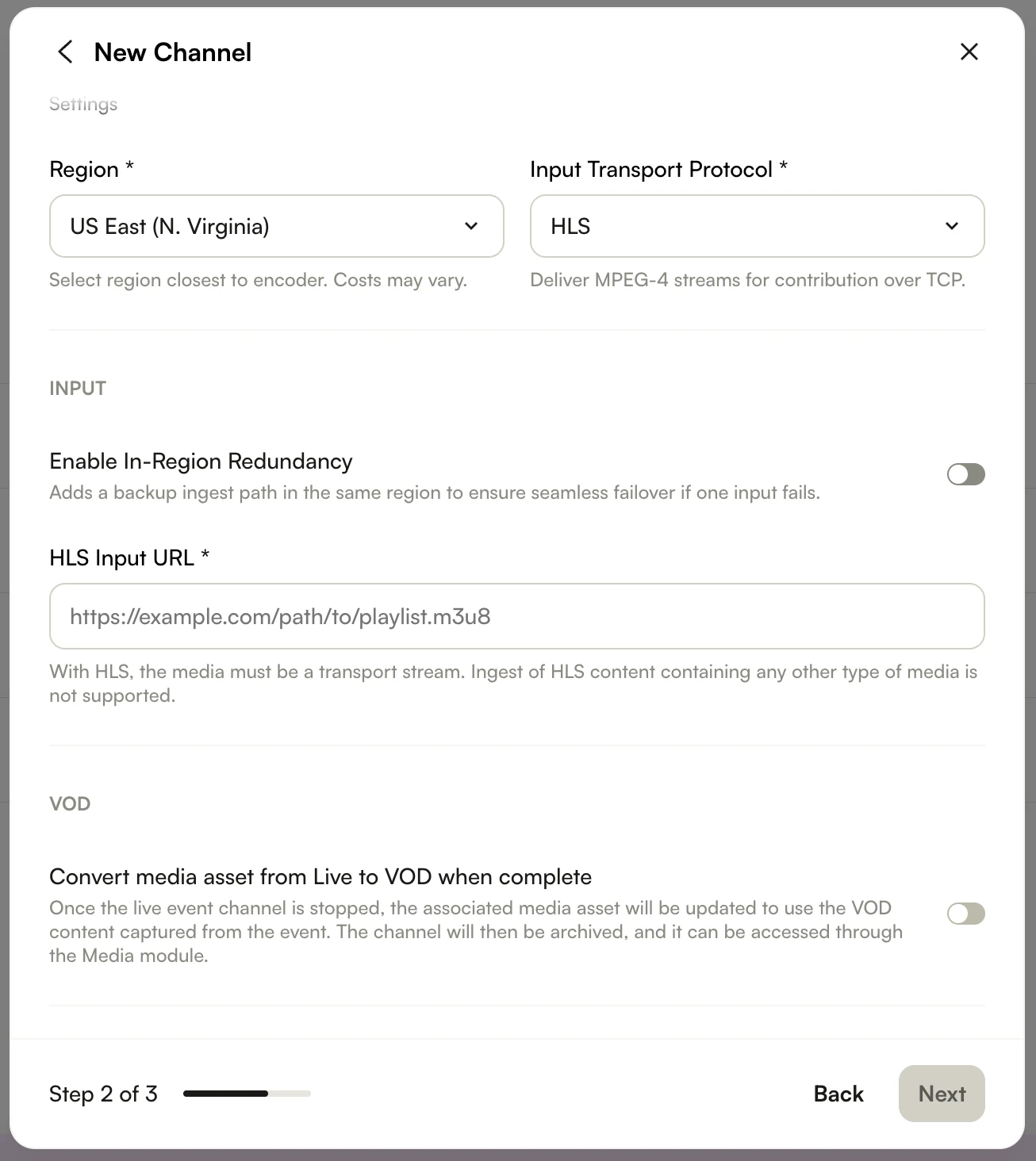
- Enter the manifest URL for your HLS source in the HLS Input URL field.
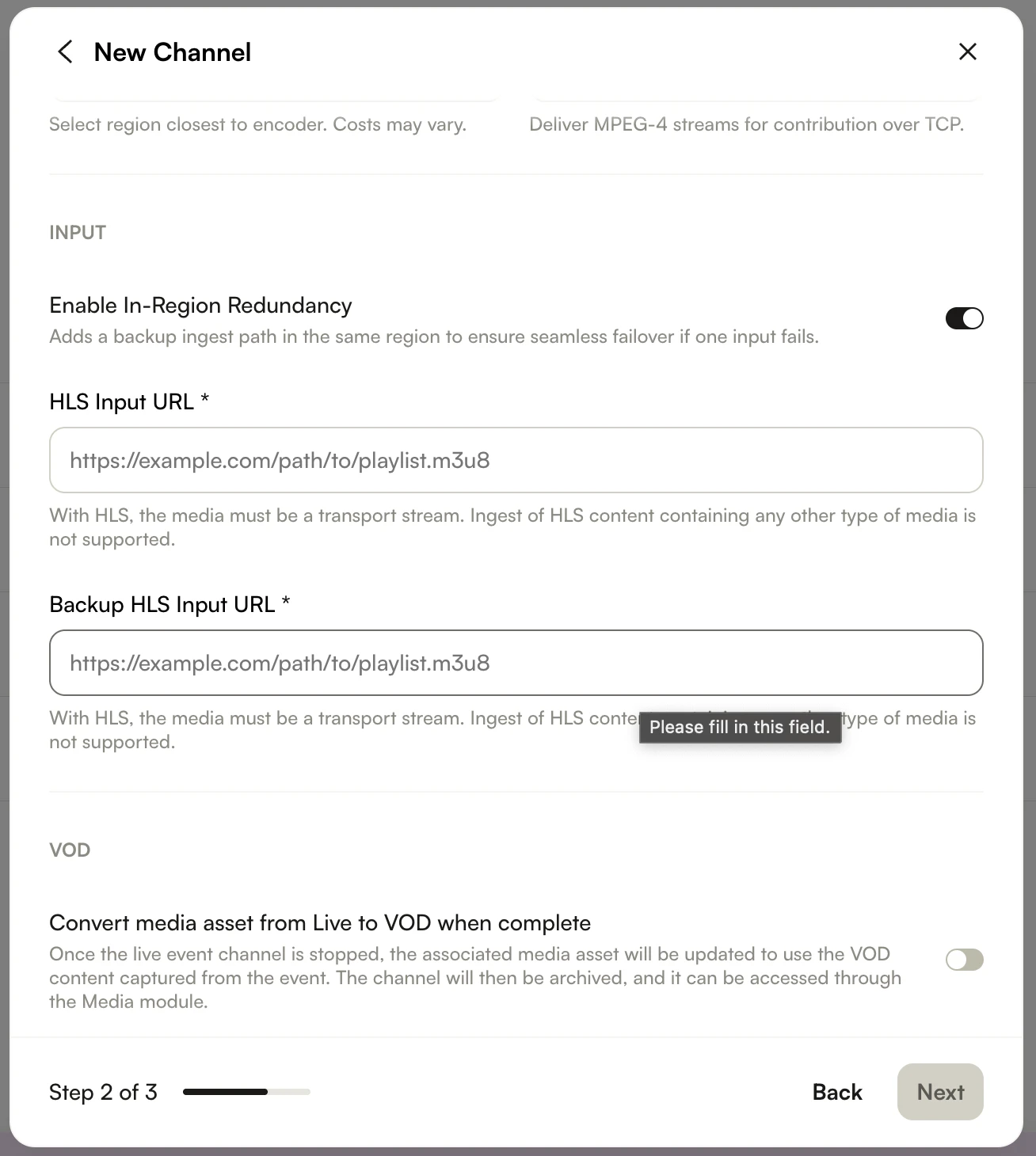
- If redundancy is enabled, enter the backup manifest URL in the Backup HLS Input URL field.
- Select your Region. To minimize latency, choose the region closest to your HLS source.
- Complete the remaining configuration steps and click Create.
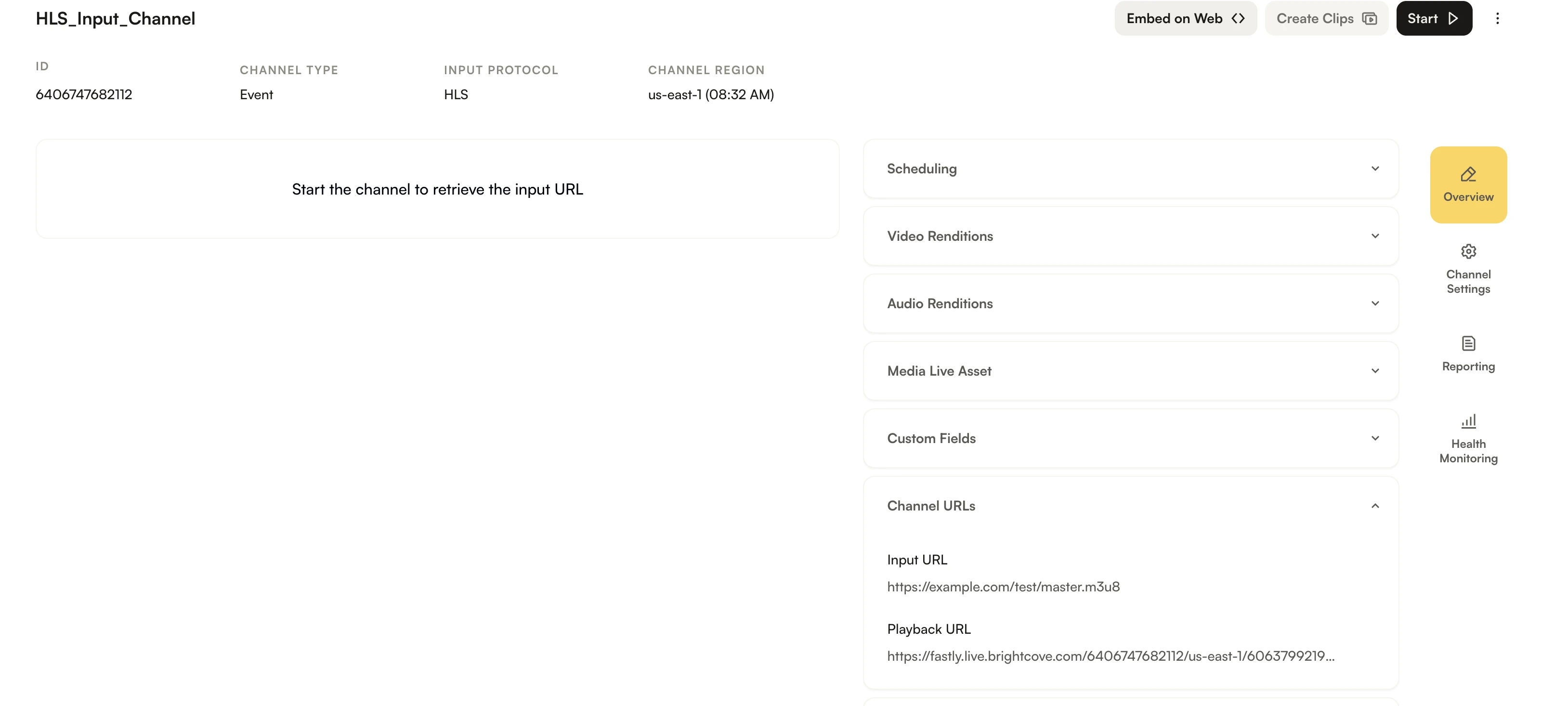
- Once the channel is created, the channel page shows HLS as the Input Protocol and lists the manifest URLs under Channel URLs / Input URL.